
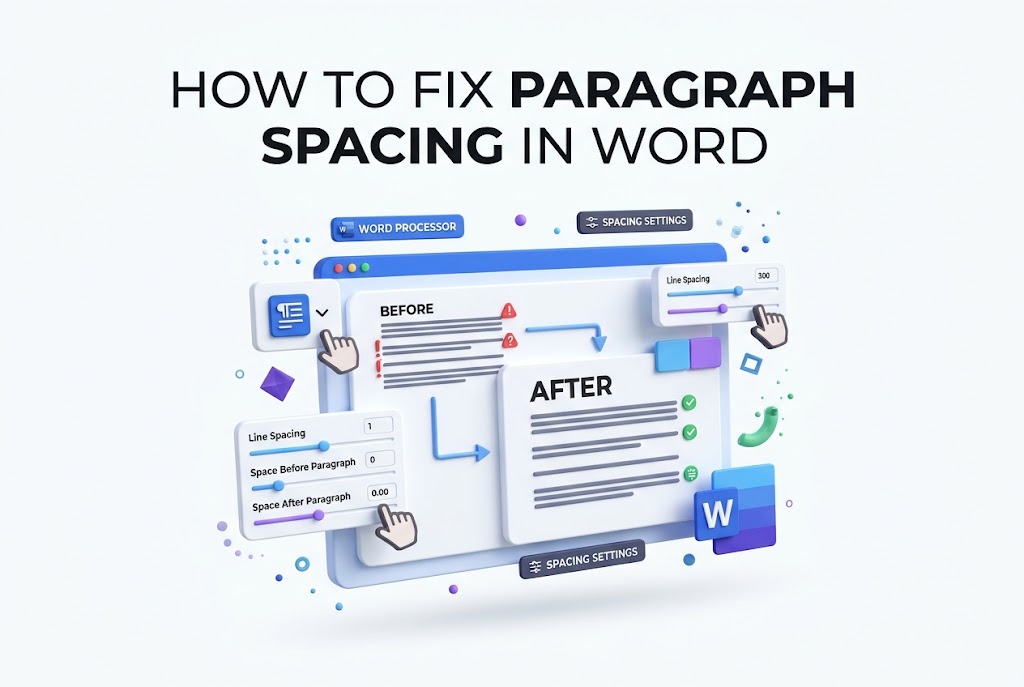
A Word document can look messy even when the text itself is correct. Extra white space between paragraphs, uneven gaps after headings, and lines that appear too far apart are usually caused by paragraph settings, not typing errors. The good news is that learning how to fix paragraph spacing in Word takes only a few clicks once you know where the settings are.
This issue often appears after pasting content from a website, using a template, or applying a built-in heading style. You may also be dealing with line spacing rather than paragraph spacing, which is why pressing Backspace or Enter rarely solves the problem permanently. In this article, you will learn how to identify the source of unwanted spacing, adjust individual paragraphs, update an entire document, control Word styles, and prevent the issue from returning. The instructions apply to current desktop versions of Microsoft Word, with notes for Word on the web and Mac where settings may look slightly different.
Paragraph Spacing Versus Line Spacing
Paragraph spacing controls the blank area before or after a paragraph. It is the setting responsible for the visible gap between two separate paragraphs, even when you pressed Enter only once. Word can apply this space automatically through a document style.
Line spacing controls the vertical distance between lines within the same paragraph. Single spacing, 1.5 spacing, double spacing, and exact point values all affect how close the lines sit together. A document can have single-spaced lines while still showing a large gap between paragraphs.
Before changing anything, click inside a paragraph and look closely at the layout. If every line looks spread out, adjust line spacing. If the text within each paragraph looks normal but separate paragraphs have extra room, change the Before and After paragraph settings instead.
Fix Spacing for Selected Paragraphs
The quickest solution is to select the paragraphs that need repair and change their spacing from the Layout tab. This is useful when only a few paragraphs look wrong, such as a copied quotation, a short section of body text, or an unusual list.
Select the affected text, open the Layout tab, and find the Paragraph section. Set Spacing Before and Spacing After to the values you need. For a clean, compact document, 0 pt before and 0 pt after is often appropriate. Many business documents use 6 pt or 8 pt after paragraphs for readability.
You can also right-click the selected text and choose Paragraph. This opens a detailed dialog box where you can set spacing, indentation, line spacing, and pagination options in one place. It is particularly helpful when the ribbon controls do not show enough detail.
Common signs that paragraph spacing is the real problem
- A consistent blank gap appears after every paragraph.
- Pressing Backspace at the start of a paragraph does not remove the gap.
- Text pasted from another source has different spacing from surrounding text.
- Headings and body paragraphs have noticeably different white space.
- The document looks double-spaced even though line spacing is set to single.
Remove Extra Space With the Home Tab
Word includes a fast command for removing the space that appears after paragraphs. Click anywhere in the affected paragraph, go to the Home tab, select Line and Paragraph Spacing, then choose Remove Space After Paragraph. If Word shows Remove Space Before Paragraph instead, that tells you the extra gap is coming from the setting above the paragraph.
This command works well when Word’s default paragraph style has added spacing after each paragraph. It is also a convenient way to correct a small section without opening the Paragraph dialog box. Apply it to selected text if you do not want to change the entire document.
The same menu lets you choose line spacing values such as 1.0, 1.15, 1.5, or 2.0. Be careful not to select a line-spacing command when the actual issue is paragraph spacing. The result may make the document look more crowded without removing the blank gap.
Reset Paragraph Settings in the Dialog Box
For more control, open the Paragraph dialog box. On Windows, select the small arrow in the bottom-right corner of the Paragraph group on the Home tab, or right-click and choose Paragraph. On Mac, use Format, then Paragraph.
In the Spacing section, review the Before and After values. Set both values to 0 pt if you want no extra gap between paragraphs. Then check Line spacing. Choose Single for standard compact text, or choose the required option for your document, such as Double for an academic assignment.
The Paragraph dialog box also includes a setting called “Don’t add space between paragraphs of the same style.” This can be useful when you want spacing after normal paragraphs but do not want Word to add that space between consecutive paragraphs using the same style. It is often helpful in reports and formal letters.
Use these steps to reset selected paragraphs:
1. Highlight the paragraphs with inconsistent spacing.
2. Open the Paragraph dialog box.
3. Set Before to 0 pt or the required value.
4. Set After to 0 pt or the required value.
5. Choose the correct line spacing option.
6. Select OK and review the result.
7. Use Format Painter only after the corrected paragraph looks right.
Correct Spacing Across the Whole Document
When every paragraph has too much or too little space, fixing one paragraph at a time wastes effort. Press Ctrl+A on Windows or Command+A on Mac to select the entire document. Then open the Paragraph dialog box and apply consistent Before, After, and line-spacing settings.
For most standard documents, a practical starting point is 0 pt before, 6 pt after, and single line spacing. A more compact layout may use 0 pt before and after. School, legal, and publishing requirements can be different, so follow the requested formatting rules rather than relying on Word’s default settings.
Take care with headings, lists, tables, and captions after selecting the entire document. Global formatting can override the spacing that helps those elements stand out. In a document with structured styles, updating the styles is often a safer and more lasting solution.
If the document contains a mixture of copied text and original writing, turn on formatting marks by selecting the ¶ symbol on the Home tab. These marks reveal paragraph breaks, manual line breaks, tabs, and extra blank paragraphs that may be contributing to the spacing problem.
Format Paragraphs With Styles
Styles are the best way to keep paragraph spacing consistent in long documents. Word’s Normal style controls most body text, while Heading 1, Heading 2, List Paragraph, Quote, and other styles manage specific content types. When a style is configured properly, every paragraph using it follows the same spacing rules.
To update a style, right-click its name in the Styles gallery and choose Modify. Select Format in the lower-left corner, then Paragraph. Set the spacing and line spacing you want, confirm the changes, and apply them. Existing text using that style should update automatically.
This approach is especially useful for reports, ebooks, proposals, newsletters, and dissertations. It also makes later revisions much easier. Rather than manually correcting dozens of paragraphs, you can change one style and maintain a consistent layout throughout the file.
For more help building consistent document formatting, add a related resource such as [Internal Link: Microsoft Word Styles Guide] near your site’s Word formatting tutorials.
Fix Copied Text That Brings Bad Formatting
Text copied from web pages, PDFs, emails, and other Word files often carries hidden formatting. It may import a different font, paragraph style, line spacing, or a large amount of space before and after each paragraph. Pasting normally can make one section look completely different from the rest of the document.
The cleanest option is to use Paste Options. After pasting, click the small paste icon and choose Keep Text Only. This removes much of the source formatting and lets the pasted content adopt the style of the destination document. On Windows, Ctrl+Shift+V may offer paste options in current Word versions, though availability can vary by version and system.
If text has already been pasted with unwanted formatting, select it and choose Clear All Formatting from the Home tab. Then apply the correct style, such as Normal. You may need to restore bold text, links, or headings afterward, but the paragraph layout will be easier to control.
A practical comparison can help you choose the right paste
| Paste option | Best use | Spacing result |
|—|—|—|
| Keep Source Formatting | Preserving the original appearance | Can import unwanted gaps and styles |
| Merge Formatting | Matching much of the destination document | May retain some source spacing |
| Keep Text Only | Cleaning text before formatting it | Usually adopts destination spacing |
| Paste Special as Unformatted Text | Removing formatting from complex copied content | Gives you the cleanest starting point |
Remove Empty Paragraphs and Manual Breaks
Sometimes the visible gap is not a spacing setting at all. It may be caused by empty paragraph marks between paragraphs. This often happens when someone presses Enter twice to create visual separation, then later applies paragraph spacing on top of those blank lines.
Turn on formatting marks using the ¶ button on the Home tab. Each paragraph ends with a paragraph mark. If you see an extra paragraph mark between blocks of text, place the cursor beside it and press Delete or Backspace to remove it. Be careful not to remove paragraph marks that are needed to separate headings, lists, or table content.
Manual line breaks can also create confusing results. A manual line break is inserted with Shift+Enter and appears as a bent arrow when formatting marks are visible. It starts a new line without creating a new paragraph, so paragraph spacing will not be applied in the same way.
Keep these cleanup habits in mind:
- Use one Enter press to create a new paragraph.
- Avoid using repeated Enter presses to add visual space.
- Use paragraph spacing settings instead of blank lines.
- Use Shift+Enter only when you need a new line within the same paragraph.
- Check hidden marks before assuming a spacing setting is broken.
Control Space Before and After Headings
Headings need different spacing from body text because they show readers where one section ends and another begins. A Heading 1 may need more space before it than after it, while a Heading 2 may need a modest gap above and below. Manually adding blank lines around headings creates inconsistent results.
Update the heading style instead. Right-click Heading 1 or Heading 2 in the Styles gallery, choose Modify, then open Format and Paragraph. Set the Before and After values based on your document’s design. For example, a main heading may use 18 pt before and 6 pt after, while a subheading may use 12 pt before and 4 pt after.
Also review the Line and Page Breaks tab in the Paragraph dialog box. The “Keep with next” option is often useful for headings because it prevents a heading from being separated from the paragraph that follows it at the bottom of a page.
Good heading spacing should make the structure clear without leaving oversized holes in the page. If a heading looks isolated, reduce the space before it or check whether an empty paragraph sits above it.
Troubleshoot Spacing That Will Not Change
If you change the spacing and nothing happens, the paragraph may be controlled by a style, a table cell, a text box, or a compatibility setting. First, click in the problem paragraph and inspect the style shown in the Styles gallery. Modify that style instead of repeatedly changing direct formatting.
Tables can behave differently because cell margins add space around text. Click inside the table, open Table Layout, choose Cell Margins, and review the top and bottom margins. Reducing those values can remove unwanted room inside table cells without changing paragraph spacing elsewhere.
Text boxes and shapes have internal margins too. Right-click the text box, choose Format Shape, and look for Text Options or text box margin settings. If the gap surrounds all text inside the shape, the issue is likely a text-box margin rather than a paragraph setting.
When editing a shared file, Track Changes can also make the layout look unusual. Accepting or rejecting formatting changes may be necessary before the final spacing becomes clear. Save a copy before making broad changes to a document with extensive tracked revisions.
Paragraph Spacing in Word for the Web and Mac
Word for the web provides basic paragraph and line-spacing controls, but its options can be more limited than the desktop app. Select the text, use the Home tab, and look for Line and Paragraph Spacing. If you need detailed Before and After values or advanced style settings, open the document in the desktop application.
Word for Mac uses many of the same ideas, although menu labels and ribbon layouts can differ slightly. Select the text, choose Format, then Paragraph to set before and after spacing. You can also use the Home tab’s line-spacing controls for quick adjustments.
Files shared through OneDrive or SharePoint can display slightly differently when collaborators use different versions of Word. The core paragraph settings should remain intact, but fonts, page size, and compatibility modes may affect the final appearance. Review the document in the version used for final delivery whenever possible.
For related layout help, a natural internal resource could be [Internal Link: How to Format a Professional Word Document].
Prevent Spacing Problems in Future Documents
Starting with a clean document style saves time later. Before writing a long report or article, set the Normal style’s font, line spacing, and paragraph spacing. Then update heading styles and list styles to match the same visual system. This gives every new paragraph a predictable format.
Use templates when you regularly create the same kind of file. A resume, client proposal, school assignment, or meeting report can all have a template with correct spacing already built in. Save it as a Word template file so the original remains unchanged when you create a new document.
Avoid using the spacebar, tabs, or extra empty paragraphs to force layout changes. These shortcuts may look acceptable on your screen but shift when the text is edited, printed, or opened on another computer. Styles, margins, paragraph settings, and page breaks are more reliable tools.
Quick tips for cleaner Word documents:
- Set paragraph spacing before writing a long document.
- Use styles for headings instead of formatting each heading manually.
- Paste web content as plain text when formatting does not matter.
- Turn on formatting marks when unexplained gaps appear.
- Check table cell margins when text inside tables looks too loose.
- Review the document in Print Layout before sharing or printing.
Conclusion
Unwanted white space in Word usually has a simple cause: paragraph spacing, line spacing, blank paragraphs, imported formatting, or style settings. Start by identifying where the gap appears, then use the Home or Layout tab to adjust the relevant setting. For a few paragraphs, direct formatting is quick and effective. For long documents, updating the Normal and heading styles produces cleaner and more dependable results.
The most useful habit is to stop using extra Enter presses as a layout tool. Let Word’s paragraph controls create consistent space, and use formatting marks when the document behaves unexpectedly. Pasted text deserves special attention because it can carry styles and spacing from another source. Once you know how to fix paragraph spacing in Word, you can correct a messy page quickly and keep future documents easier to edit, read, and share.
Frequently Asked Questions
Why does Word add space after every paragraph
Word may apply spacing after paragraphs through the current style, often Normal. Select the text and choose Remove Space After Paragraph, or open Paragraph settings and reduce the After value to 0 pt.
How do I make all paragraphs single spaced
Select the document, open Line and Paragraph Spacing from the Home tab, and choose 1.0. Then check the Paragraph dialog box to ensure Before and After spacing are not creating extra gaps.
Why is spacing different after pasting text
Copied text can retain source formatting, including styles and paragraph settings. Use Keep Text Only when pasting, or clear the pasted text’s formatting and apply the destination document’s Normal style afterward.
Can I remove paragraph spacing without changing headings
Yes. Select only body paragraphs and adjust their settings, or modify the Normal style instead of selecting the entire document. Heading styles will keep their separate spacing unless you change them directly.
Why are paragraphs spaced oddly inside a table
Table cell margins may be adding room above and below the text. Click inside the table, open cell margin settings, and reduce the top and bottom margins before changing paragraph spacing.